
Smithly
Yunttopia의 대장간The forge of Yunttopia
창을 열기 전에,
이미 끝나 있습니다.Your files never leave.
The work still gets done.
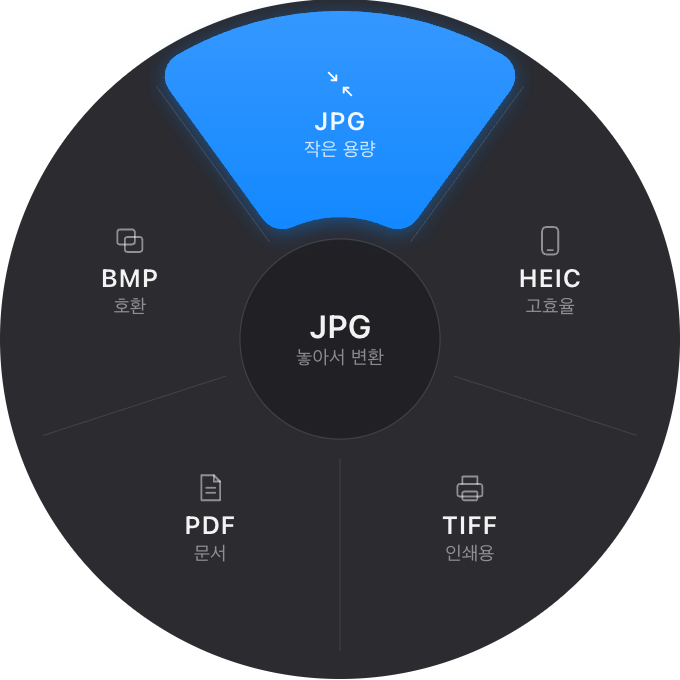
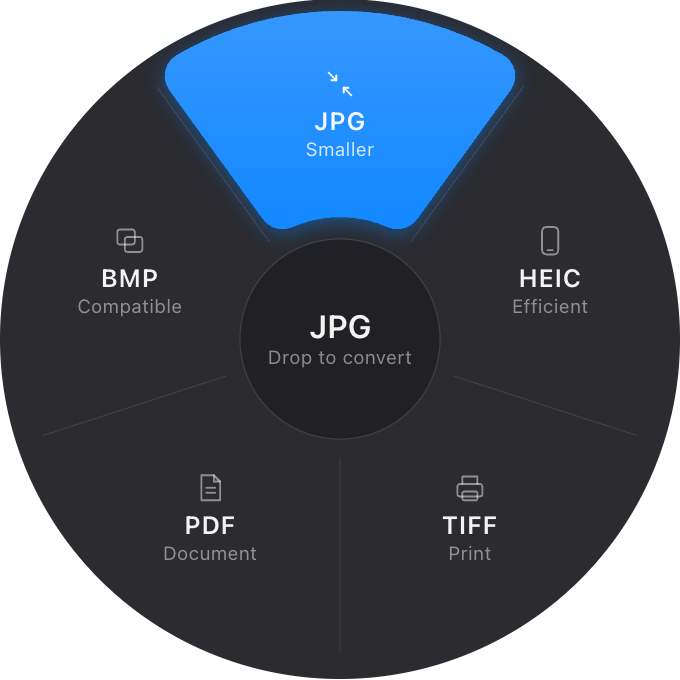
프로그램을 열 필요가 없습니다. 파일을 끌면서 Shift를 누르면 커서 둘레에 원형 메뉴가 뜨고, 원하는 형식에 놓으면 끝입니다.
No app to open. Hold Shift while dragging a file, a radial menu appears around your cursor, and you drop it on the format you want.
Apple Silicon(M1 이후) 맥 전용 · Windows 준비 중 · 기본 기능 무료Apple silicon (M1 or later) Macs only · Windows coming soon · Core features free
직접 해보기Try it here
무료 버전에서는 이미지 형식 변환, 회전, 크기 50%, 자르기, 한글 → PDF를 쓸 수 있습니다.
The free version includes image conversion, rotate, resize 50%, crop and Hangul (HWP/HWPX) → PDF.
파일은 내 컴퓨터 안에서만Files stay on your computer
변환과 편집은 모두 컴퓨터 안에서 처리합니다. 파일을 서버로 올리지 않습니다.
Every conversion and edit runs locally. Your files are never uploaded.
원본은 그대로Originals untouched
결과는 원본 옆에 새 파일로 만듭니다. 같은 이름이 있으면 덮어쓰지 않고 번호를 붙입니다.
Results are saved as new files next to the original. Nothing is ever overwritten.
Mac · Windows
두 운영체제 모두 같은 원형 메뉴로 씁니다. 한 계정으로 여러 기기에서. 아직 Mac에서만 되는 기능에는 “Mac 지금 · Windows 준비 중” 표시를 붙였습니다(가격 페이지 기능 비교표에 전부).
Same radial menu on both, one account across your devices. Anything that works only on Mac for now is marked “Mac now · Windows coming soon” (all listed in the comparison on the Pricing page).
Shift + drag
형식 변환Convert
이미지를 끌면서 Shift를 누르면 바꿀 수 있는 형식이 원형으로 펼쳐집니다. 여러 파일을 한 번에 끌어도 되고, 이미 그 형식인 파일은 건너뜁니다. PDF를 그림으로 바꾸면 여러 쪽이면 쪽마다 한 장씩 폴더에, 1쪽이면 파일 하나로 나옵니다.
Hold Shift while dragging an image and the formats you can convert to fan out around the cursor. Drag several files at once; files already in that format are skipped. A PDF turned into images becomes a folder with one image per page if it has several pages, or a single file if it has one.
- PNG
- JPG
- HEIC Mac 지금 · Windows 준비 중Mac now · Windows coming soon
- TIFF
- BMP
Option / Alt + drag
편집 도구Tools
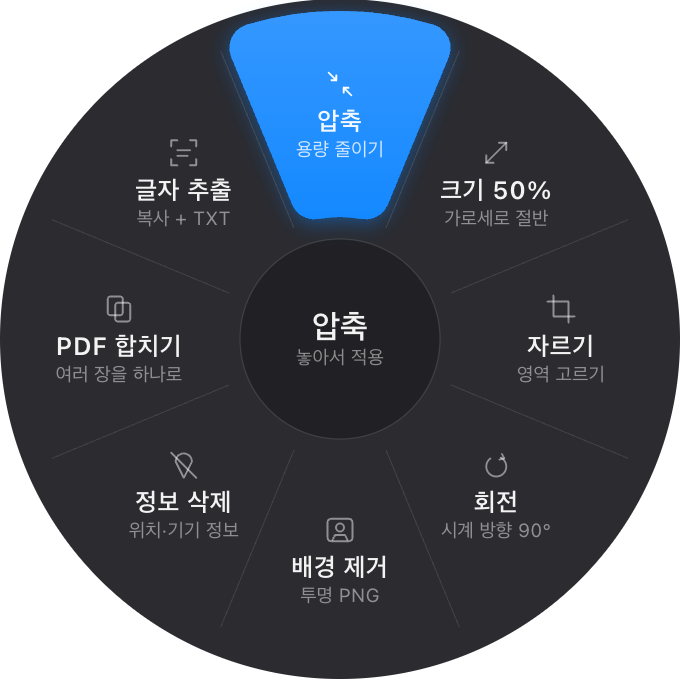
Option(Windows는 Alt)을 누르면 도구 메뉴가 뜹니다. 끈 파일에 실제로 쓸 수 있는 도구만 보입니다. PDF에는 정보 삭제(작성자·날짜 등)·PDF 합치기·글자 추출이 뜹니다. Word·한글 문서의 정보 삭제·글자 추출은 Mac 지금 · Windows 준비 중Mac now · Windows coming soon. 자르기는 작은 창에서 비율을 골라 바로 적용합니다. 배경 제거는 Mac 지금(macOS 14 이상) · Windows 준비 중Mac now (macOS 14+) · Windows coming soon.
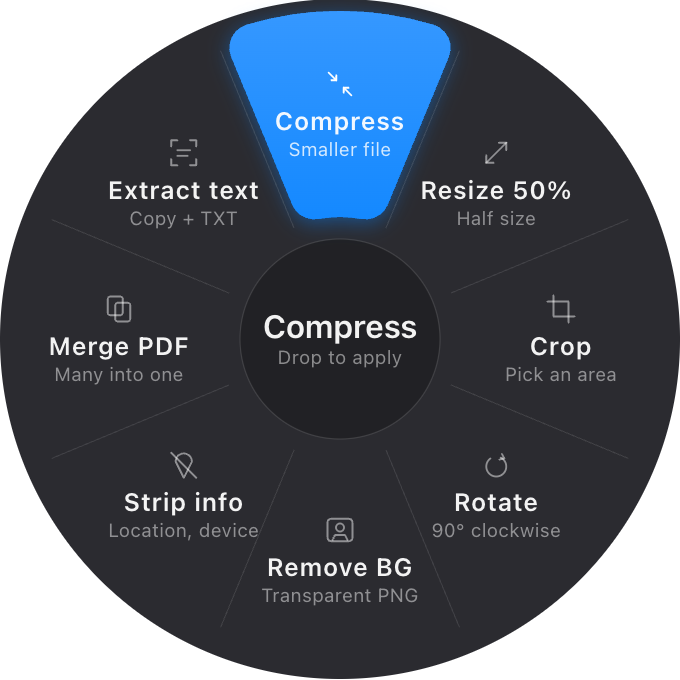
Hold Option (Alt on Windows) for the tools menu. Only the tools that work on what you dragged appear — PDFs get Strip info (author, dates…), Merge and Extract text. Strip info and Extract text for Word and HWP files: Mac 지금 · Windows 준비 중Mac now · Windows coming soon. Crop opens a small window where you pick a ratio and apply. Background removal: Mac 지금(macOS 14 이상) · Windows 준비 중Mac now (macOS 14+) · Windows coming soon.
- 압축Compress
- 크기 50%Resize 50%
- 자르기Crop
- 회전Rotate
- 배경 제거Remove background Mac 지금(macOS 14 이상) · Windows 준비 중Mac now (macOS 14+) · Windows coming soon
- 정보 삭제Strip metadata
- PDF 합치기Merge into PDF
- 글자 추출Extract text
HWP · HWPX · Word
한글·Word 문서도 바로Hangul (HWP/HWPX) and Word documents
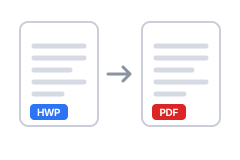
한글(HWP·HWPX) 문서를 끌어서 바로 PDF·이미지·텍스트로 바꾸고, HWP와 HWPX를 서로 바꿉니다(Mac·Windows). 한글과 Word 사이 변환은 한글 → Word Mac 지금 · Windows 준비 중Mac now · Windows coming soon, Word → 한글 Mac 지금 · Windows 준비 중Mac now · Windows coming soon입니다. 여러 쪽 문서를 그림으로 바꾸면 쪽마다 한 장씩 폴더에 담깁니다.
Drag Hangul (HWP/HWPX) documents straight into PDF, images or text, and convert between HWP and HWPX (Mac and Windows). Between Hangul and Word: Hangul → Word Mac 지금 · Windows 준비 중Mac now · Windows coming soon, Word → Hangul Mac 지금 · Windows 준비 중Mac now · Windows coming soon. A multi-page document turned into images gives one image per page, in a folder.
표 안에 표가 있는 등 바꾸면 모양이 달라지기 쉬운 문서는 결과를 만든 뒤 “확인 필요”로 알려 드립니다.
If a document has parts that tend to shift when converted (a table inside a table, for example), the result is still saved and marked “Check needed”.
- 한글(HWP·HWPX) →Hangul (HWP/HWPX) → PDF · PNG · JPG · TXT
- 한글(HWP·HWPX) 여러 개를 한 번에 PDF로(무료)Several Hangul (HWP/HWPX) files to PDF at once (free)
- HWP ↔ HWPX 서로 바꾸기HWP ↔ HWPX
- 한글 → WordHangul (HWP/HWPX) → Word Mac 지금 · Windows 준비 중Mac now · Windows coming soon
- Word → 한글(HWP·HWPX)Word → Hangul (HWP/HWPX) · PDF · PNG · JPG · TXT Mac 지금 · Windows 준비 중Mac now · Windows coming soon
섞어서 끌기Mixed drag
종류가 달라도 한 번에Different kinds, one drop
사진과 한글 문서처럼 종류가 다른 파일을 함께 끌면, 모두가 갈 수 있는 형식만 메뉴에 남습니다. 예를 들어 사진과 한글 문서를 PDF에 놓으면 파일마다 알맞은 방식으로 각각 PDF가 됩니다. 함께 쓸 메뉴가 하나도 없으면 메뉴를 띄우지 않습니다.
Drag different kinds of files together, like a photo and a Hangul (HWP/HWPX) document, and only the formats all of them can become stay in the menu. Drop them on PDF and each file becomes its own PDF, converted the right way for its kind. If nothing fits all of them, no menu appears.
- 사진 + 한글 → PDFPhoto + Hangul (HWP/HWPX) → PDF Pro
- 한글 + Word → PDF·TXTHangul (HWP/HWPX) + Word → PDF, TXT Mac 지금 · Windows 준비 중Mac now · Windows coming soon Pro
자주 묻는 질문FAQ
파일이 인터넷으로 올라가나요?Are my files uploaded anywhere?
아니요. 변환과 편집은 모두 컴퓨터 안에서 처리합니다. 앱이 서버와 주고받는 것은 로그인과 이용 등급 확인에 필요한 정보(계정, 기기 식별값, 운영체제, 앱 버전)뿐이며, 파일 내용이나 파일 이름은 보내지 않습니다.
No. All processing happens on your computer. The app only talks to our server to sign you in and check your plan (account, a device identifier, OS and app version). File contents and file names are never sent.
원본 파일이 바뀌나요?Does it change my original file?
아니요. 결과는 원본과 같은 폴더에 새 파일로 저장합니다. 이름이 겹치면 뒤에 번호를 붙이고, 기존 파일을 덮어쓰지 않습니다.
No. Results are saved as new files in the same folder. If a name is taken, a number is added; existing files are never overwritten.
어떤 키를 누르나요?Which keys do I use?
파일을 끄는 동안 Shift를 누르면 변환 메뉴, Option(Mac) 또는 Alt(Windows)를 누르면 도구 메뉴가 뜹니다. 원하는 칸 위에서 손을 떼면 됩니다. 메뉴 밖에 놓으면 아무 일도 일어나지 않습니다.
While dragging a file, hold Shift for the convert menu, or Option (Mac) / Alt (Windows) for tools. Release over the option you want. Dropping outside the menu does nothing.
한글 프로그램이 있어야 하나요?Do I need the Hancom Office app?
아니요. 한글 문서 변환에는 공개 엔진 rhwp(MIT 라이선스)를 앱 안에 넣어 사용합니다. 복잡한 서식은 원본과 조금 다르게 보일 수 있습니다.
No. Hangul (HWP/HWPX) conversion uses the open-source rhwp engine (MIT), bundled inside the app. Complex layouts may look slightly different from the original.
Word → 한글 변환은 얼마나 잘 되나요?How well does Word → Hangul (HWP/HWPX) work?
2026년 10월에 당시 변환기로 잰 결과입니다. 직접 만든 일상 문서 24건(시험용)을 한글로 바꾸고, 결과를 공개 엔진 rhwp로 그려 원본의 Word 화면과 비교했습니다. 24건 모두 변환되어 열렸고, 그중 2건(8.3%)은 1~2쪽짜리 문서의 쪽 수가 늘었습니다. 한컴 한글로 열어 본 결과는 아닙니다. 시험지처럼 표·단·글상자가 많은 문서는 모양이 더 달라질 수 있어, 깨지기 쉬운 요소가 있으면 앱이 “확인 필요”로 알려 드립니다. Word 변환: Mac 지금 · Windows 준비 중Mac now · Windows coming soon.
Measured in October 2026 with the converter of that time: we converted 24 everyday test documents we made ourselves to HWP, drew the results with the open-source rhwp engine and compared them with the originals in Word. All 24 converted and opened; in 2 of them (8.3%) a one- or two-page document gained pages. These were not opened in Hancom Office. Complex layouts such as exam papers with many tables, columns and text boxes can differ more, and the app marks documents with fragile parts as “Check needed”. Word conversion: Mac 지금 · Windows 준비 중Mac now · Windows coming soon.
무료로 쓸 수 있나요?Is it free?
이미지 형식 변환, 회전, 크기 조정, 자르기, 한글 → PDF는 무료입니다. 나머지 기능은 Pro에서 열립니다. 가격 보기
Image conversion, rotate, resize, crop and Hangul (HWP/HWPX) → PDF are free. Everything else is part of Pro. See pricing